DYSEKT docs · Files
Browser
Browse your sample folders inside DYSEKT, preview in time with your track, star favourites, find recent files and load a sound where you're working.
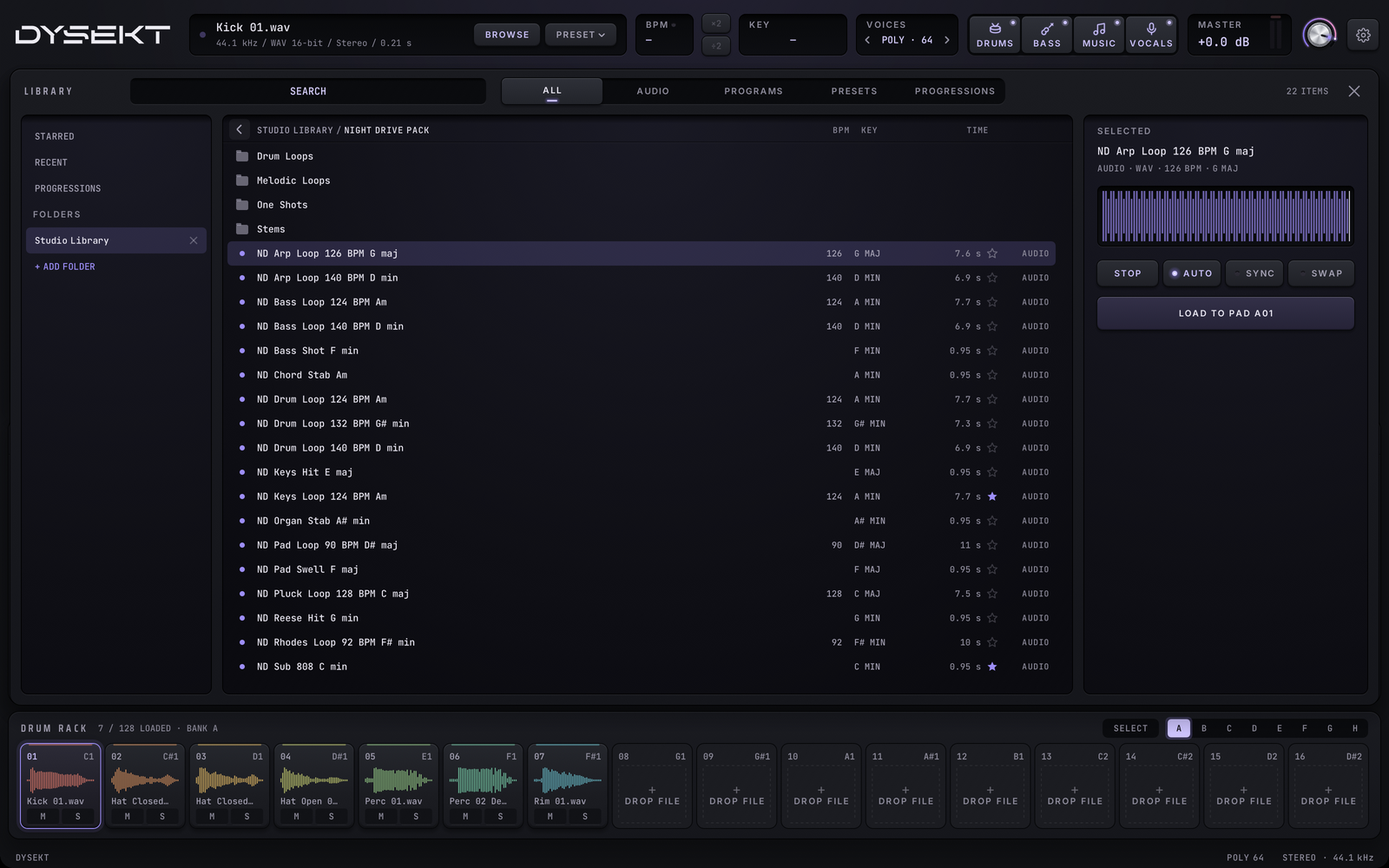
BROWSE in the top bar opens the browser over the editor. Click it again, or the close key, to go back.
#Your folders
- + ADD FOLDER adds a folder of samples. DYSEKT scans it in the background and remembers it.
- The × on a folder takes it out of the list; the files stay where they are.
- STARRED lists the files you've starred. RECENT lists files you've loaded lately.
- PROGRESSIONS lists the chord progression files in your folders. See Chords.
#Find a file
- Click a folder to open it. The back arrow, or a folder in the path above the list, goes back up.
- SEARCH finds files by name in the open place.
- The browser remembers where you were: close the plug-in window and it reopens in the same folder, with the same file selected.
- A folder on a drive that isn't connected shows OFFLINE until you plug it back in.
- The type keys show ALL files, or just AUDIO, PROGRAMS (kits and instruments), PRESETS or PROGRESSIONS.
- BPM comes from DYSEKT's analysis of the audio (a one-shot has none). KEY comes from the file name where it has one, otherwise from analysis. TIME is the file's length.
- The star on a row stars the file.
#Preview
The SELECTED panel shows the file and its waveform.
- PREVIEW plays it. AUTO (on to start with) plays each file you select.
- SYNC plays it at your track's tempo, using the file's BPM.
- MPC and Maschine programs preview with the demo they ship with: an MPC expansion's file in its [Previews] folder, Maschine's own preview, or failing that a kit's loop from Samples/Loops/Construction. A preset without one plays through its own samples instead: an instrument goes up a major scale, a kit hits each pad in turn. SoundFonts, SFZ and DYSEKT presets preview this way too.
- SWAP (Drum and Keys) puts the sample on the selected pad or zone while it's picked, so you hear it in your beat with that pad's own settings. If nothing is playing, the pad hits once. Nothing is loaded: turning SWAP off, closing the browser or selecting another pad puts the original back. LOAD keeps the sample and the settings on the same pad or zone.
#Load it
- LOAD TO … loads the file where you're working: the selected pad in Drum mode, as the sample in Slice mode, or as a new zone in Keys mode.
- The browser closes after loading, so you're back with what you loaded. Progressions are the exception: it stays open to try another.
- Drag a file onto a pad, or onto the keyboard in Keys mode.
- Ctrl-click picks one more file; Shift-click picks a run of files. In Drum mode they load onto the selected pad and the next free ones; in Keys mode each becomes a zone.
- Right-click a file or folder to show it in Finder (Explorer on Windows).