DYSEKT docs · Modes
Slice mode
Cut one sample into up to 128 slices by hits, beats, regions, at random or by hand, and play them from MIDI or send them to the other modes.
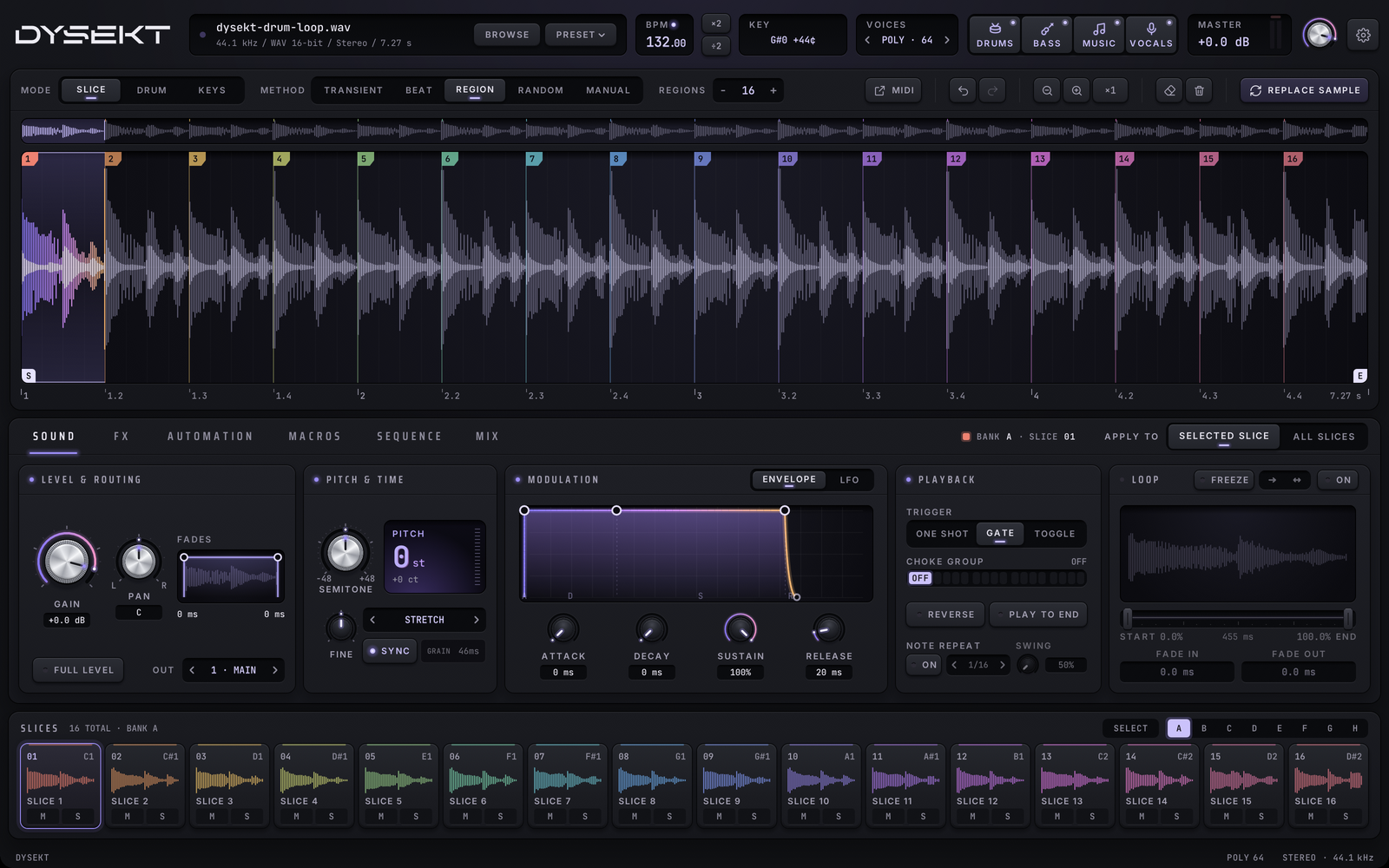
#Load a sample
- Drop an audio file anywhere on DYSEKT.
- Or double-click the empty waveform, or the sample name in the top bar, to browse.
- Or use the load key beside the sample name. With a sample already loaded, replacing it keeps your slices and settings.
Slice mode also opens ReCycle loops (.rx2, .rex, .rcy) with the slices they were saved with. See Importing and file formats.
#Slicing methods
Choose a method, then set its amount in the field beside it. Drag the amount, or double-click it to type.
| Method | Slices… | Amount |
|---|---|---|
| TRANSIENT | at detected hits | SENSITIVITY: higher finds quieter hits |
| BEAT | on a musical grid | DIVISION: the grid size |
| REGION | into equal regions | REGIONS: how many |
| RANDOM | at random points | COUNT: how many |
| MANUAL | only where you place markers | SLICES: shows how many you've made |
Slicing again keeps your stems: if you've soloed a stem, every new slice starts with the same stems.
#Edit the markers
On the waveform:
- Click a slice to select it.
- Drag a marker to move it.
- Double-click to add a marker, or double-click a marker to remove it.
- Right-click a marker to remove it.
- Hold Shift while dragging to snap to hits, or Shift+Option to snap to the grid.
- CLEAR SLICES removes every marker.
Undo and redo step through slice edits. See Shortcuts and gestures.
#Play the slices
Each slice has its own MIDI note: slice 1 is C1 (MIDI note 36), slice 2 is C#1, and so on up. Slices 1–92 reach note 127; any slices after that continue from note 0.
- Click a pad to play its slice and select it.
- Option-click a pad to select it without playing it. SELECT, beside the bank letters, does this for every click and computer-key press until you turn it off. Neither changes a step on the SEQUENCE tab, and MIDI notes always play.
- The bank keys A–H show 16 pads each, up to 128.
- M and S on a pad mute or solo that slice.
- A pad marked EMPTY PAD has no slice yet. Add markers to fill more pads.
How a slice plays when you hold or release the note (one-shot, gate, toggle, looped) is set on the SOUND tab.
#Send slices to Drum or Keys
Right-click a pad to open the send menu:
- SEND SLICE n TO DRUM or SEND ALL n SLICES TO DRUM
- SEND SLICE n TO KEYS or SEND ALL n SLICES TO KEYS
What happens:
- No audio is written. Each pad or zone plays from the same sample and takes the slice's full settings and stems.
- Nothing is overwritten. Slices go to empty pads or zones only. In Drum mode, slices keep their own pad numbers when those pads are free, so a MIDI part written in Slice mode plays the same in Drum. If there aren't enough empty places, nothing is sent.
- One slice sent to Keys (a chord, a stab) plays across the whole keyboard, rooted on its own detected pitch. Several slices each sit on their Slice-mode note.
- Undo in Slice mode takes back the last send, until your next edit.
If a slice is playing as a one-shot, the first right-click stops it instead.
#Slice to MIDI
The SLICE TO MIDI key in the toolbar makes a MIDI clip of every slice at its original timing:
- Drag it onto a track in your DAW. Played back through DYSEKT, the clip plays the original loop, ready to rearrange.
- Click it to save the clip as a
.midfile instead.
See MIDI export.
#Tempo
DYSEKT detects the sample's tempo from the audio and shows it as BPM in the top bar. If the detection is off by double or half, use ×2 or ÷2. Drag the BPM, or double-click it to type the right value. With SYNC on, slices follow your DAW's tempo.
- A tempo needs evidence. A loop or song gets a tempo when its audio has a clear pulse (straight, swung or in triplets). A stab, hit or pad has none, so with SYNC on it plays at its own speed and pitch, in key, until you type a BPM.
- Type 0 to give a sample no tempo. It's saved with the project. See Pitch and time.