DYSEKT docs · Writing
Sequencers
Program beats with your kit in Drum mode, or rearrange a loop from its own slices in Slice mode. Both play with your DAW and drag out as MIDI.
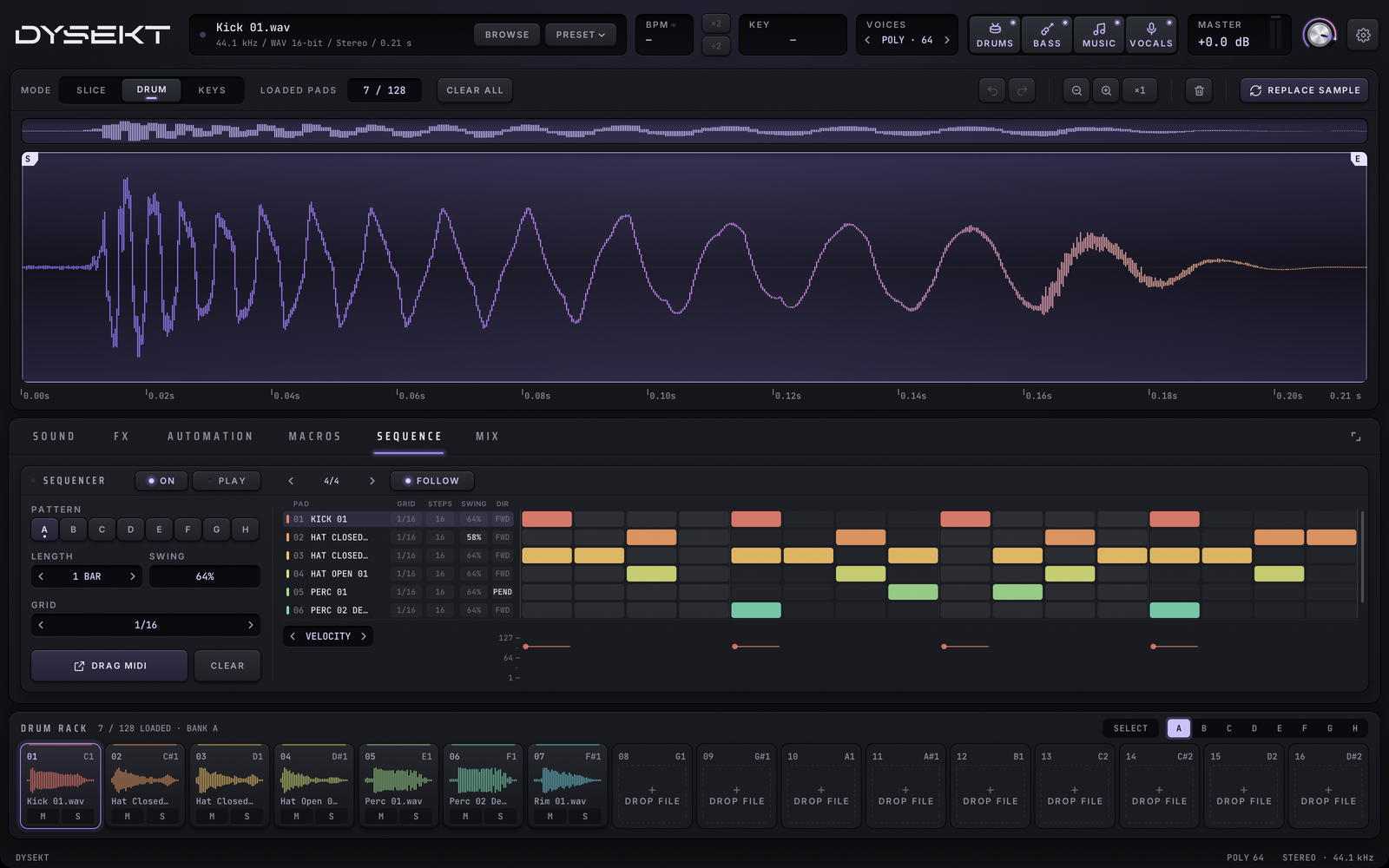
The SEQUENCE tab holds a step sequencer in Drum mode and a slice sequencer in Slice mode. Keys mode has its own: Melody.
#Play it
- ON plays the sequence along with your DAW, locked to its tempo and bar. Off, the sequence stays silent but is kept, for example once you've dragged it out as MIDI.
- PLAY runs it now, whether your DAW is playing or not, and in the standalone app. Click again to stop.
- The time signature comes from your DAW. In the standalone app, set it with the selector in the header.
- FOLLOW turns the page as it plays, so you see the bar you hear. Switch it off to edit another bar while it plays.
- The expand key (top right of the tabs) opens the sequencer tall, over the waveform. Click it again to close.
#Drum sequencer
A row for each pad, a column for each step. Click a step to add or remove it; drag along a row to paint.
- PATTERN A to H: eight patterns. A dot shows a pattern has steps. A change while playing waits for the next bar. Drag a pattern key onto another to copy it.
- LENGTH: how long the pattern is before it repeats, from a beat to several bars. Right-click for one bar.
- GRID: the step size, from 1/4 to 1/64 triplets. T is triplets; QUINT and SEPT are 5 or 7 steps a beat.
- SWING: pushes every second step late, from 50% (straight) to 75%, like an MPC. Double-click to type it; right-click for 50%.
- Bars: with a pattern longer than a bar, the bar keys at the top right show each bar. Drag one onto another to copy the bar.
For a Dilla-style pocket, keep the snare row on 16 and set the kick and hat rows' own grids to 16Q or 16S, then push single hits with NUDGE.
#Rows with their own settings
Each row has four columns beside the pad's name. A dim value follows the pattern; a bright one is the row's own. Right-click a column to make it follow the pattern again.
| Column | What it sets |
|---|---|
| GRID | The row's step size. Click to step through the grids. |
| STEPS | How many steps the row has before it repeats, up to 384. Drag up or down, or double-click to type it. |
| SWING | The row's own swing, 50% to 75%. Drag up or down. A triplet grid shows a dash, as it has no swing. |
| DIR | The order the row plays its steps: FWD forwards, REV backwards (step 1 stays on the downbeat, so on-beat steps stay on the beat), PEND forwards one pass then backwards the next, RND at random. Click for the next. |
A five-step row against a four-step kick drifts in and out of phase. A swung hat row over a straight kick, or a hat row playing backwards, changes the groove without touching the steps.
#Lanes
The lane under the grid sets a value for each step of the selected pad. Choose it with the LANE selector:
| Lane | What it sets |
|---|---|
| VELOCITY | How hard the step plays. |
| CHANCE | How likely it is to play each time round. |
| RATCHET | Repeats the step 2 to 4 times within its length. |
| NUDGE | Moves the step slightly early or late. |
| PITCH | Transposes the step, in semitones. |
Drag a bar to set it, Shift-drag for fine steps, double-click to type, right-click to reset. Right-click a step to reset its lane values.
#Slice sequencer
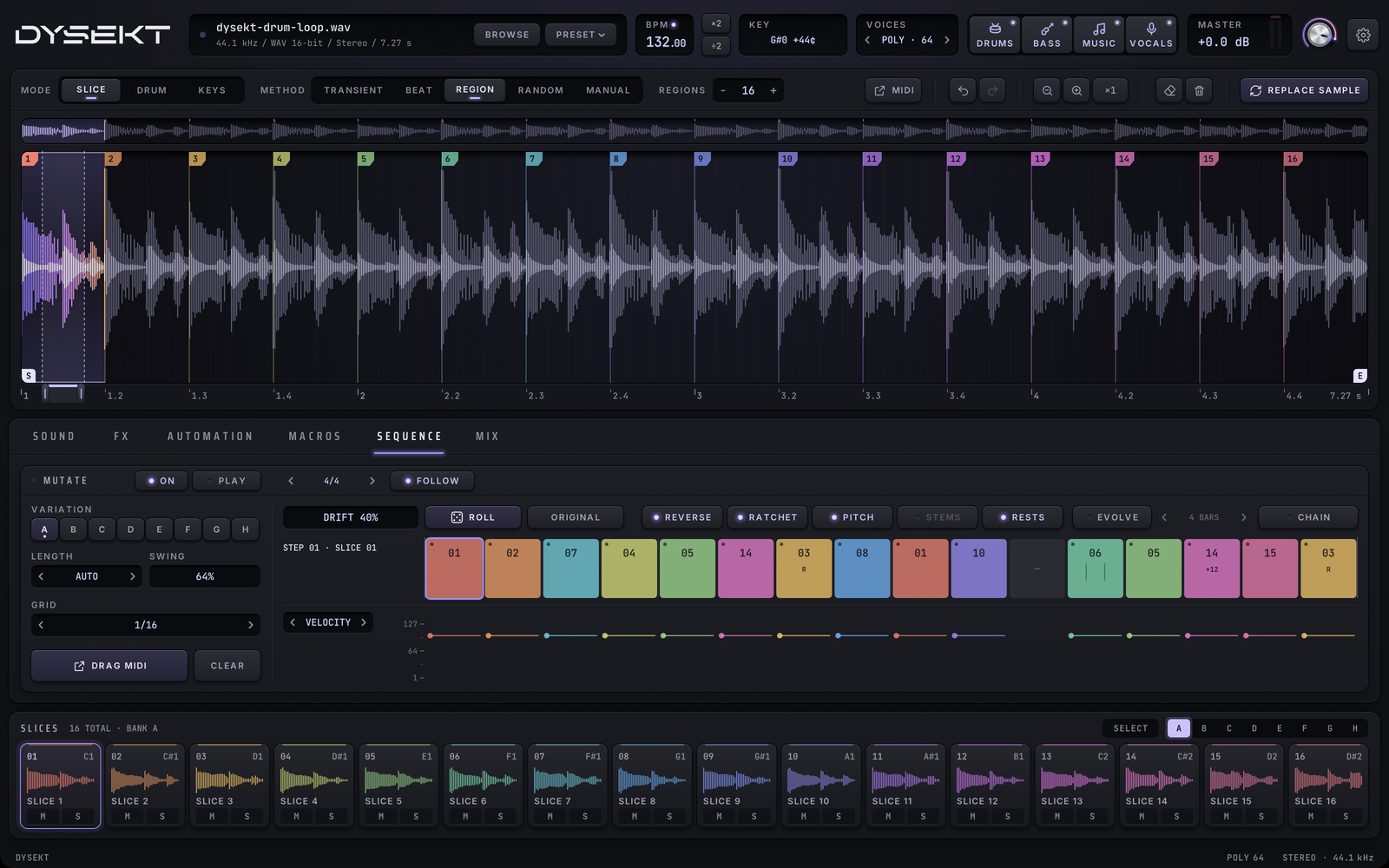
In Slice mode, the sequencer starts with the loop as it was cut: step 1 plays slice 1, step 2 plays slice 2, and so on. Change it by hand or roll new variations.
- Click a step, then a pad, to put that slice on the step.
- Shift-click a step to lock it. ROLL, ORIGINAL and EVOLVE leave locked steps alone.
- Right-click a step to rest it (no sound).
#Roll
- ROLL makes a new variation: steps take other slices at random. Locked steps stay.
- DRIFT sets how far a roll strays: how many steps change slice, and how many moves it makes.
- The moves choose what ROLL can do as well as swapping slices: REVERSE, RATCHET, PITCH (octave and fifth jumps), STEMS (drop a stem, on separated samples) and RESTS. Rests never land on the beat.
- ORIGINAL puts the loop back in its own order, on every step that isn't locked.
#Variations, EVOLVE and CHAIN
- ALL shows the whole variation in one line. A bar number zooms into that bar.
- VARIATION A to H: eight variations. A dot shows one has been changed from the loop. Drag a key onto another to copy it.
- LENGTH: AUTO gives a step for every slice. Or set a length in bars or beats. Right-click for AUTO.
- GRID: the step size, from 1/4 (a slice per beat) down.
- EVOLVE: while it plays, a fresh mutation every few bars, using DRIFT and the moves, always starting from your variation. Set how often with the bars selector beside it.
- CHAIN: plays variations in order, a pass each. With CHAIN on, clicking a variation adds it to the chain. Click a chain slot to edit that variation; right-click to take it out.
#Lanes
The lane under the steps sets VELOCITY, CHANCE, RATCHET, PITCH, NUDGE, LENGTH, REVERSE or STEMS for each step. Every slice also keeps its own SOUND and FX settings wherever it plays.
#Drag it out as MIDI
DRAG MIDI turns the pattern, or the variation or whole chain, into a MIDI clip. Drag it onto a track in your DAW, or click it to save a .mid file. See MIDI export.
CLEAR empties the shown pattern or variation. Click again (SURE?) to confirm.