DYSEKT docs · Writing
Melody
In Keys mode, the MELODY tab writes melodies from a scale for your sound, in four phrases, and can write to your chords.
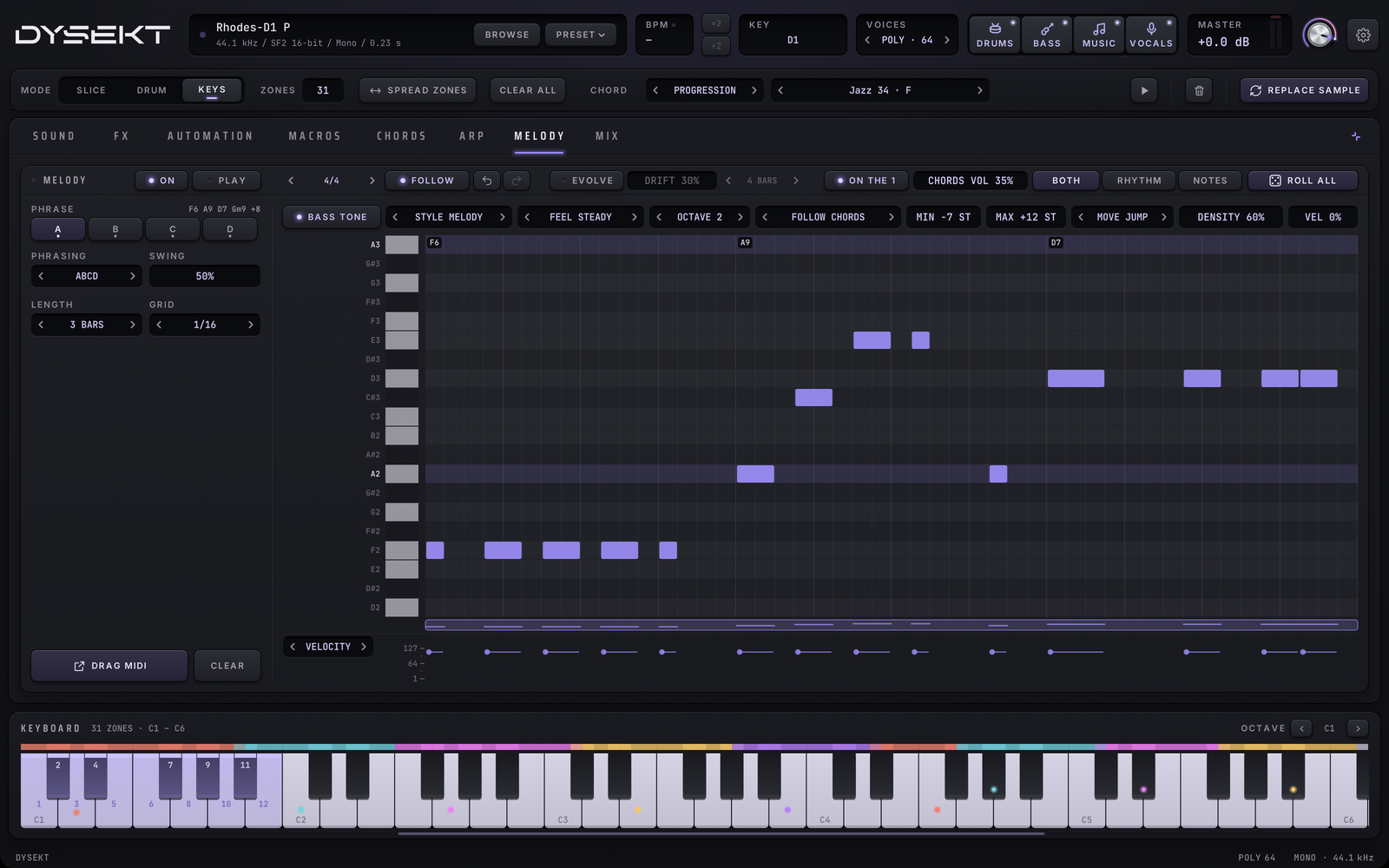
The MELODY tab plays a melody on your Keys sound. It writes the notes from a root and a scale; you can then edit them on the piano roll.
#Phrases
A melody is four phrases, A to D. PHRASING sets the order they play in, such as ABAC or AABB. Drag a phrase key onto another to copy it. The key under each phrase shows which one you're editing; the playing one is underlined.
- LENGTH: how long each phrase is. Right-click for one bar.
- GRID: the step size. T is triplets.
- SWING: pushes every second step late, from 50% to 75%.
#Write it
Set the generator, then press ROLL:
| Setting | What it does |
|---|---|
| ROOT | The key's root note. |
| SCALE | One of 28 scales: major, the minors and modes, pentatonics, blues, Hirajoshi, and reduced scales for tighter lines. |
| MIN, MAX | The range, in semitones from the root. |
| ON ROOT | How often a note lands on the root. |
| DENSITY | How many steps start a note. |
| LENGTH | Each note's length in steps, or VAR for varied. |
| VEL | How much the velocity varies. |
- ROLL writes all four phrases. Right-click it to choose one phrase instead: ROLL A, B, C or D, then back to ALL.
- Locked notes stay when you roll.
- BOTH, RHYTHM and NOTES beside ROLL choose what it writes. RHYTHM keeps your notes in order, and NOTES keeps your rhythm.
#Style
STYLE chooses how ROLL writes:
- RANDOM: any note of the scale, mostly near the last one.
- MELODY: lines for any genre, from FEEL and MOVE, from basslines up: MIN, MAX and ROOT set the range. Each second bar answers the first, and a few held notes slide into the next. Choosing MELODY turns ON THE 1 on and narrows the default range. ROOT stays where it is.
FEEL replaces LENGTH in MELODY and sets where the notes land: 132 one-bar grooves across SPARSE, STEADY, BUSY, ROLLING, OFFBEAT, STABS, HEAVY, LONG, BROKEN, DRIVING and ACID. ANY picks a different one each roll. LYRICAL, last in the list, writes flowing lines by step instead of a groove, without MOVE. DENSITY leans towards the lighter or busier grooves of that feel. That's 228,096 four-bar rhythms before each roll bends them. The grooves are rhythm only: the notes are written fresh, in your key and scale.
MOVE replaces ON ROOT in MELODY and sets how the notes travel, with any FEEL:
- ROOT stays on the root, with the odd change.
- JUMP uses roots, fifths and octaves.
- WALK moves by step, leans into each bar from a semitone away, and sits a little behind the beat.
- SLIDE glides between notes.
Mix them however you like. Some places to start:
| You want | FEEL | MOVE |
|---|---|---|
| Boom bap | HEAVY | JUMP |
| De La or Dilla walking bass | HEAVY or STEADY | WALK |
| 808 | LONG | SLIDE |
| Jungle, D&B | BROKEN | SLIDE |
| Techno | DRIVING | ROOT |
| House | STEADY or OFFBEAT | JUMP |
| Neo soul | STEADY | WALK |
| Acid | ACID | SLIDE |
BASS TONE appears in MELODY. It plays the melody on a built-in bass voice instead of the sound loaded, so you can judge a line on any preset; a chord part stays on the sound loaded. Slides glide cleanly on it, however short the sample. Leaving BASS goes back to the sound loaded.
ROOT's arrows move the whole line an octave. Click the box to choose a note, or drag it for semitones.
ON THE 1 starts every bar on the root, in any style. With FOLLOW CHORDS it does the same for each new chord; turn it off and a chord can start on any of its notes. ROLL places it, and EVOLVE leaves it alone.
#Follow your chords
Record a chord part on the CHORDS tab, or pick a progression there, then choose FOLLOW CHORDS at the top of the SCALE list. ROLL then writes to those chords: the first note of each chord lands on its root (its lowest note), and the notes on the beat land on chord notes. The notes are real, so what you see is what you hear and what DRAG MIDI gives you.
With FOLLOW CHORDS on, the notes come from the chords, so ROOT becomes OCTAVE and only sets where the line sits. In LYRICAL, the line keeps its shape and takes its notes from each chord: strong beats land on the 3rd, 7th or 9th, and the notes between stay in the progression's key. Off-beats sit slightly behind, and some notes slide in. With FOLLOW CHORDS, ROLL writes each note from the chord at its place in the chord part. A capture keeps your timing to the 1/16, so passing chords are followed too.
The piano roll names the chords each phrase follows. These come from the chord part, not the keys you press, so use PICK or a capture on the CHORDS tab if you play other chords. Choosing FOLLOW CHORDS sets PHRASING and LENGTH so the phrases run through the part in order, until you change either: then they're yours and stay as you set them. The one exception: if a new capture would put a phrase over two different chords, they're reset to fit it and the status bar says so. While the melody plays, the chord part plays under it at the CHORDS VOL level beside ON THE 1. Keep it low to judge the two together, or use 0% when the real chords are on another track.
#Edit on the piano roll
- Double-click an empty step to add a note. Drag a note to move it, or its end to change its length.
- Double-click or right-click a note to delete it.
- Scroll or pinch to zoom, as on the waveform. Drag an empty part of the roll up and down to zoom, and sideways to move. Shift-scroll moves sideways too. The strip under the roll shows the whole phrase and the part in view: when zoomed in, click or drag it to jump. Scroll over the piano keys to move through the pitches.
- Shift-click a note to lock it.
- Option-click a note to slide into it: the note before runs up to it and glides there with no new attack. It works on sounds played in REPITCH, STRETCH or CRISP within one zone; elsewhere the note plays normally.
- The lane under the roll sets VELOCITY, CHANCE, RATCHET or NUDGE for each note. Double-click a value to type it.
#Evolve
EVOLVE plays a fresh variation every few bars while it plays, always from your phrases. DRIFT sets how much it changes, and the bars selector how often. Locked notes stay.
#Play and export
ON plays the melody with your DAW; PLAY runs it now. Keys you play yourself play on top. The melody and the arpeggiator take turns: switching one on switches the other off.
DRAG MIDI drags every phrase into your DAW in the order it plays. See MIDI export.