DYSEKT docs · Writing
Mixer
The MIX tab gives every pad, slice or zone a channel strip with a fader, meter, pan, mute, solo, output and its effect chain, plus the master.
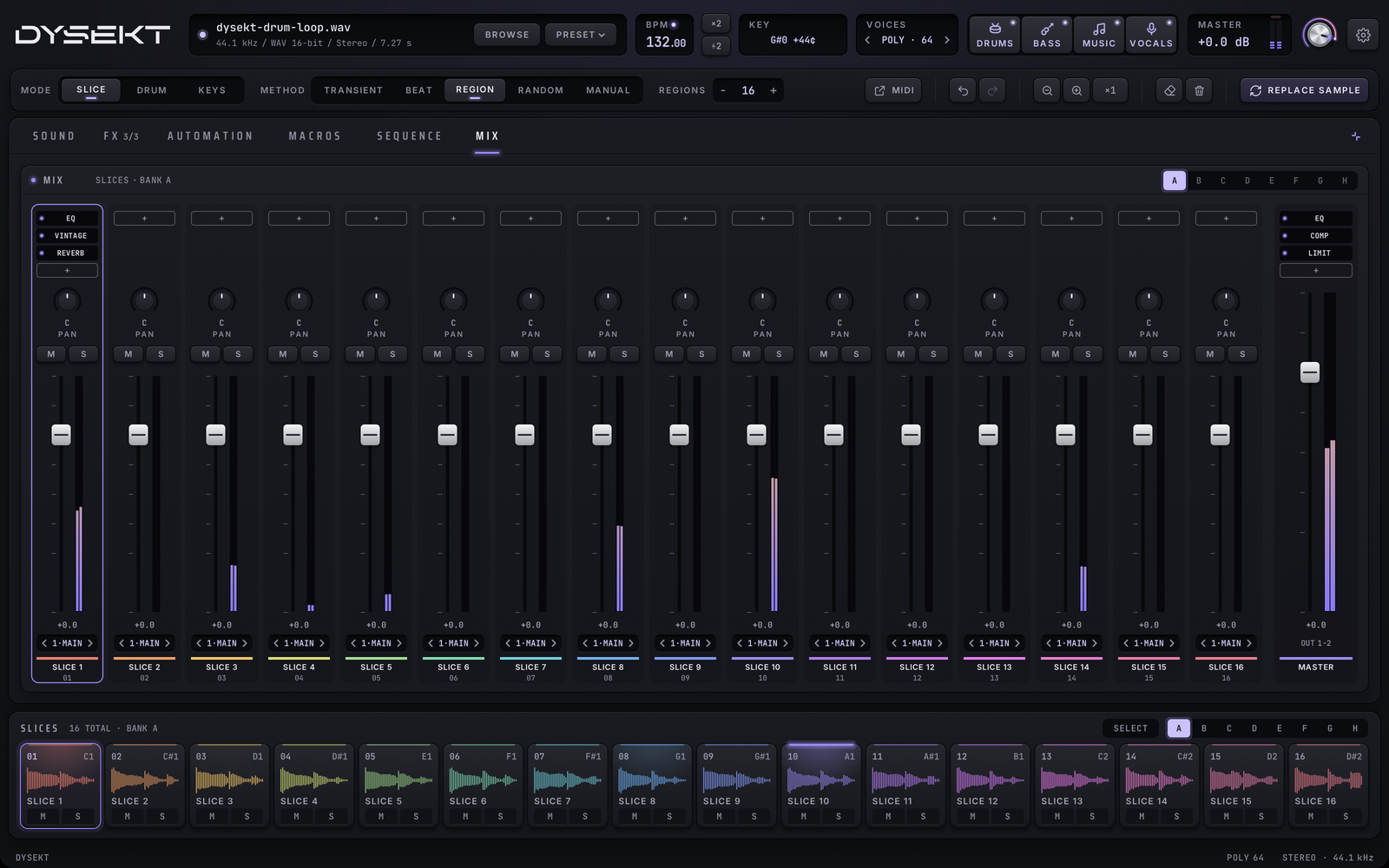
The MIX tab shows a channel strip for each pad, slice or zone, and the master. It opens short, under the waveform, so you can mix while you see the sample. The expand key at the right end of the tabs makes it tall, over the waveform, with each channel's full effect chain and output; click it again to go back.
#A channel strip
From top to bottom:
- Effects: in the short mixer, one key shows the effect's name, or how many there are, lit while any is on. Click it to open the chain on the FX tab, or + to add one. Expanded, the channel's effect chain in order. A lit dot is on; a dim one is bypassed. Click an effect to open it on the FX tab. + adds an effect; +n MORE opens the rest of a long chain.
- PAN: drag up or down. Double-click or right-click to centre it.
- M and S: mute and solo.
- The fader: the channel's level, from silence up to +12 dB, with 0 dB marked. Double-click or right-click it for 0 dB. The meter beside it shows the channel playing.
- The output (expanded): the arrows step through DYSEKT's 16 stereo outputs, 1 · MAIN first. See Separate outputs.
- The name with its colour, and the pad, slice or zone number. Click a strip to select it.
#The master
The strip on the right is the master: its effect chain (click to open the master chain), the master fader (the same as MASTER in the top bar) and the master meter.
#More than 16
Sixteen strips show at a time. In Drum mode the bank keys A to H switch banks. In Slice and Keys modes, the arrows page through.