DYSEKT docs · Modes
Drum mode
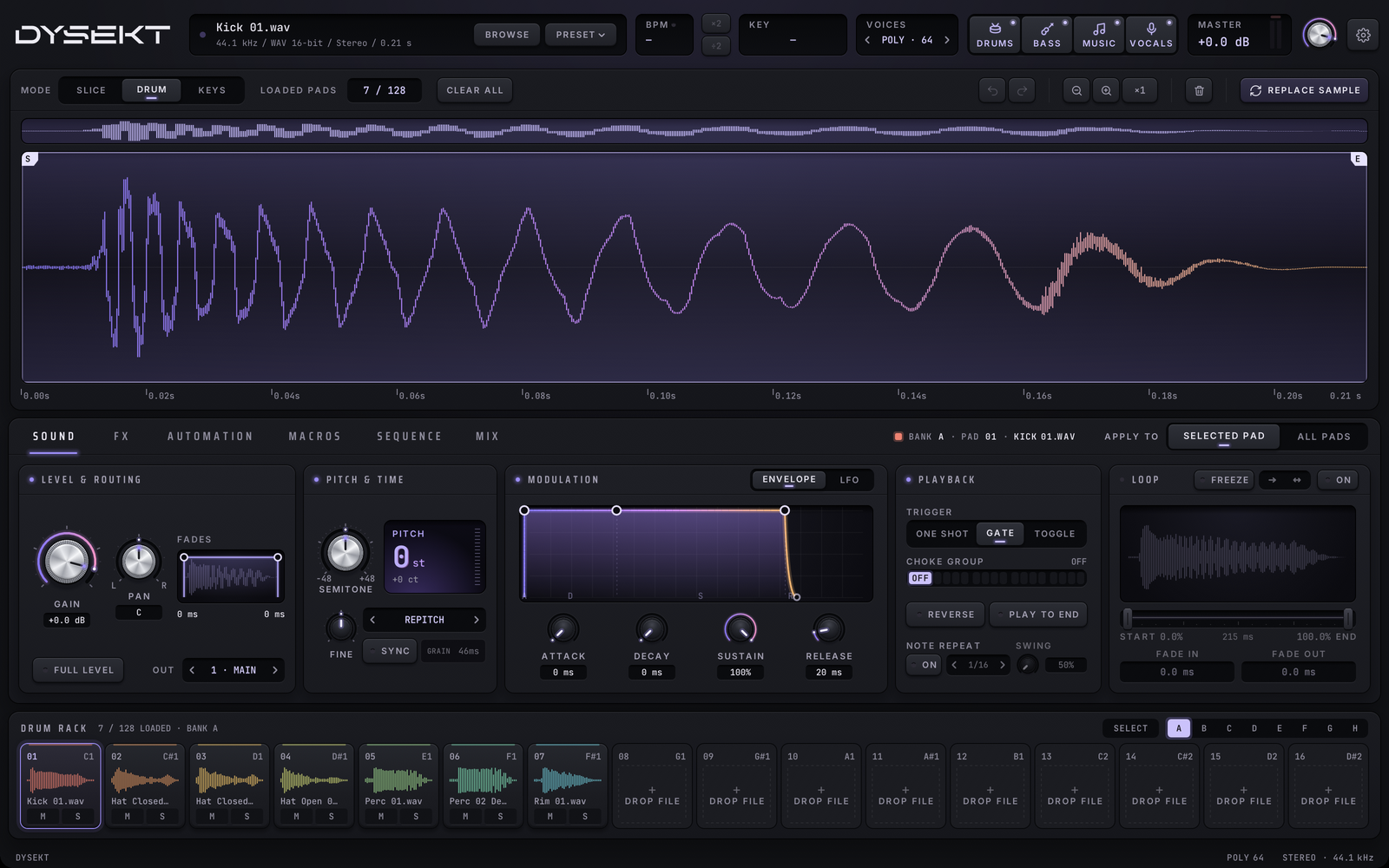
A different sample on each of 128 pads, with choke groups, mute and solo, and MPC and Maschine kits that open with every pad in place.
#Load samples onto pads
- Drop a file on a pad to load it there.
- LOAD SAMPLE in the top bar loads one or more files, starting at the selected pad.
- Double-click the empty waveform, or an empty pad, to browse for a file for that pad.
- Replacing a pad's sample keeps its settings.
- REMOVE SAMPLE clears the selected pad; the file stays on disk.
- CLEAR ALL removes every pad's sample.
LOADED PADS in the toolbar shows how many pads have a sample.
MPC drum programs (.xpm) and Maschine groups (.mxgrp) open with every pad in place. See Importing and file formats.
#Play the pads
- Click a pad to play it. Pads play from MIDI on the same notes as Slice mode: pad 1 is C1 (MIDI note 36), pad 2 is C#1, and so on.
- Right-click a pad for its menu (see Copy, paste and send). If the pad is playing a one-shot, the first right-click stops it.
- Option-click a pad to select it without playing it. SELECT, beside the bank letters, does this for every click and computer-key press until you turn it off. Neither changes a step on the SEQUENCE tab, and MIDI notes always play.
- The bank keys A–H each show 16 pads.
- M and S on a pad mute or solo it.
#Rearrange pads
- Drag a pad onto another to swap them.
- Shift-drag to copy a pad instead. The copy takes the sample and all its settings.
#Copy, paste and send
Right-click a pad to open its menu:
- CUT, COPY and PASTE: the clipboard holds one pad, its sample and all its settings. Paste it onto any pad, or into a Keys zone.
- DELETE clears the pad; the file stays on disk.
- SEND TO SLICE loads the pad's sample into Slice mode, ready to slice: the part of the file the pad plays becomes the active region. It replaces Slice mode's current sample.
- SEND TO KEYS adds the pad as a new Keys zone across the whole keyboard, rooted on its own detected pitch.
You stay in Drum mode; the status line confirms where it went, with a link to that mode.
#Trim a pad
The waveform shows the selected pad. Drag the S and E handles to trim its start and end. The mouse wheel zooms. Click while it plays to skip to that point. Undo and redo step through trims of the selected pad.
#Choke groups
Pads in the same CHOKE GROUP cut each other off, like open and closed hi-hats. Set the group on the SOUND tab. Imported kits bring their mute groups across as choke groups.
#Separate outputs
Send any pad to its own stereo output with OUTPUT on the SOUND tab, up to 16 stereo outputs. In your DAW, enable DYSEKT's extra outputs to mix pads on their own channels.