DYSEKT docs · Chords and arp
Chords and progressions
In Keys mode, play a stored chord from every key, or play one of over 700 chord progressions with each chord on its own key, then shape the strum and capture what you play as MIDI.
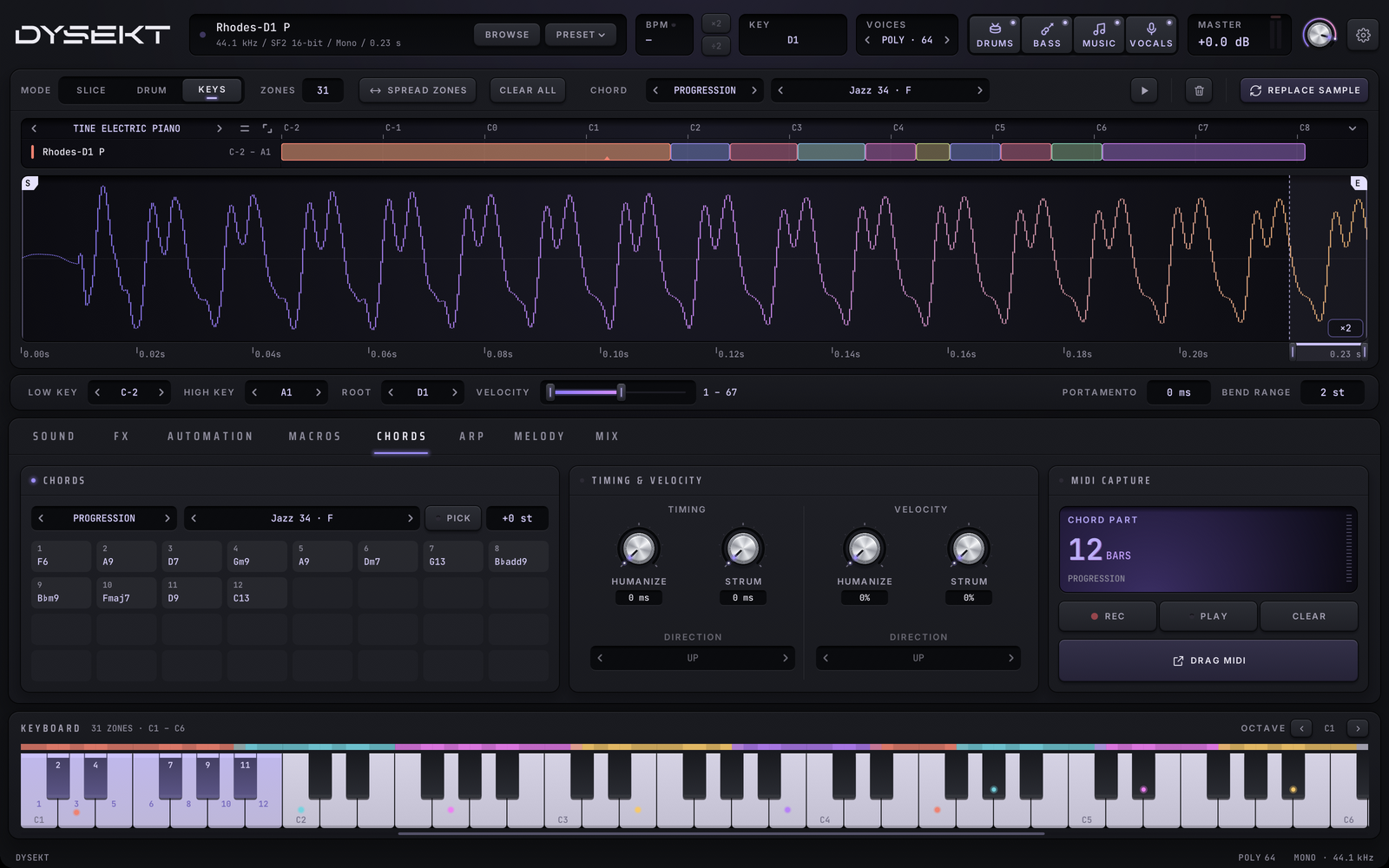
Chords work in Keys mode, with whatever zones you've loaded: every chord plays your own sounds. Choose what your keys do with the CHORDS selector in the Keys toolbar: OFF, MEMORY, PROGRESSION or ARP. Only one is on at a time.
#Chord memory
With MEMORY, every key plays one stored chord, built up from that key.
- Click RECORD CHORD to arm it.
- Play a chord, from your MIDI controller or the on-screen keyboard.
- Let go of every note. The chord is stored.
STORED CHORD shows the chord's name and its intervals from the lowest note. Right-click it to clear the chord.
Each key then plays the chord from that key, at the velocity you play. Chord memory plays chords even when VOICES is set to mono.
#Progressions
With PROGRESSION, each chord of a progression sits on its own key, one after another, starting from C1 (MIDI note 36) and going up. A very long progression starts lower so it fits. The keys are lit and numbered on DYSEKT's keyboard.
DYSEKT comes with over 700 progressions in 30 genres, such as neo soul, R&B, gospel, house, garage, techno, hip hop, trap, jazz, funk, Latin and cinematic. Each has a plain name and its key, like Neo Soul 01 · Db.
#Find a progression
- The arrows beside the progression's name step through the list, as filtered.
- Click the name to open the list.
- Star a progression with the star at the end of its row. Starred progressions gather in the STARRED category, in every project.
With the list open:
| Key | What it does |
|---|---|
| Typing | Filters the list by name. |
| ← → | Change category: ALL, STARRED, then each genre and your own folders. |
| ↑ ↓ | Move through the list. |
| Return | Loads the highlighted progression. |
| Backspace | Deletes the last letter of the filter. |
| Esc | Closes the list. |
#Transpose
TRANSPOSE moves every chord of the progression up or down, up to two octaves either way. Drag it up or down; right-click to reset it to 0. The CHORDS and ARP tabs share the same transpose.
#Load a progression file
Drop a progression file on DYSEKT to load it: a Ripchord preset (.rpc), an MPC progression (.progression), a Scaler chord set or state (.xml), a Cthulhu preset (.fxp), or a DYSEKT progression (.dysekt-progression). To keep your own progressions in the list, add their folders in the browser.
#The CHORDS tab
The CHORDS tab shows the progression's chords, each on its key and in order. Click a chord to hear it; scroll for more.
#Timing and velocity
These shape how a chord's notes spread out. A single note is never strummed.
| Control | What it does |
|---|---|
| STRUM | Time from a chord's first note to its last, spread evenly. |
| STRUM DIRECTION | Low to high (UP), high to low (DOWN), or either one alternating with each chord (UP · ALTERNATE, DOWN · ALTERNATE). Needs STRUM. |
| TIMING HUMANIZE | Random timing between a chord's notes, up to the value. |
| VELOCITY STRUM | Velocity falls from a chord's first note to its last. At 100% the last note is the softest. |
| VELOCITY DIRECTION | Which note is loudest first: low (UP), high (DOWN), or alternating. Needs VELOCITY STRUM. |
| VELOCITY HUMANIZE | Random velocity for each note of a chord. |
Right-click or double-click a knob to turn it off. Double-click its value to type a number.
These settings apply to chord memory and progressions alike.
#MIDI capture
Record what you play, strums, humanize and arpeggios included, then drag it into your DAW.
- Click MIDI CAPTURE to arm it. Recording starts on the first note you play.
- Play.
- Click it again to stop.
LENGTH shows how long the capture runs, in seconds and in bars at the host tempo. Then:
- Drag DRAG MIDI onto a track in your DAW to drop the clip there.
- Click DRAG MIDI to save the clip as a
.midfile. - CLEAR discards the clip.
The capture is the same on the CHORDS and ARP tabs.
#The chord part
Stopping a capture on the CHORDS tab also makes it the chord part: your take, snapped to the 1/16, in whole bars. Choosing a progression fills the chord part too, a chord a bar in list order, unless you recorded one. To use only some of its chords, turn on PICK and click them in the order you want: each takes a bar, and a number shows its place. Right-click a chord to remove it, or right-click PICK to go back to all of them. PLAY loops it in time with your track, CLEAR removes it, and DRAG MIDI drags it out.
The MELODY tab can write to it: choose FOLLOW CHORDS in its SCALE list.
#Your own progressions and packs
- Folders: add folders of Ripchord, MPC, Scaler and Cthulhu files in the browser. Their progressions join the list, and the browser's PROGRESSIONS place shows them all.
- Packs: DYSEKT's own pack format is
.dysekt-chords. Drop a pack on DYSEKT to install it.